How to add analytics to a Shopify store
Shopify already counts your sales - the question is what to add on top. The built-in reports' real coverage, the official GA4 route, the app-embed route for lighter tools, and the 2026 checkout rules that broke every old tutorial.
What Shopify already tracks
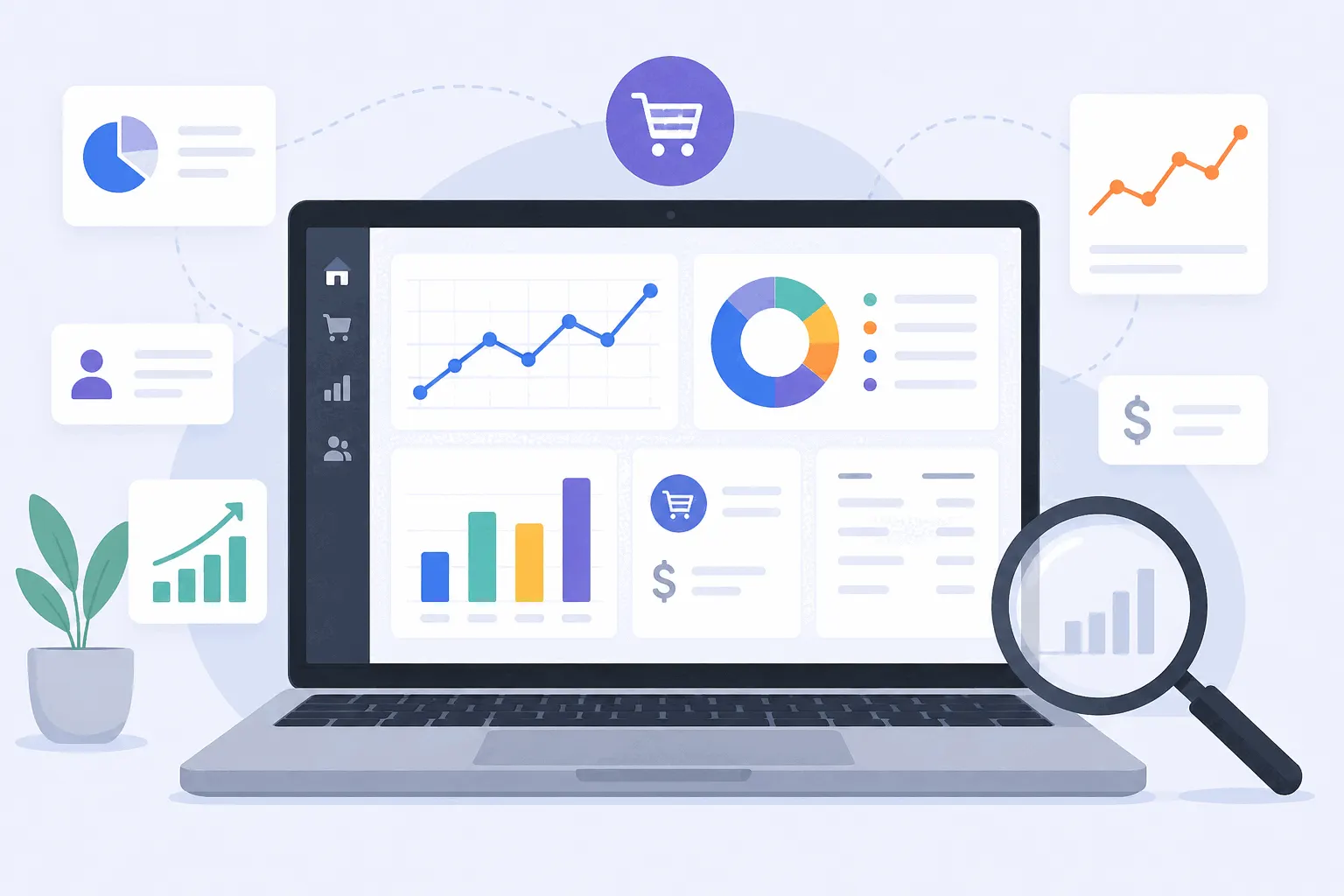
Every Shopify plan ships with an Analytics section covering the commerce layer properly: an overview dashboard of sales, sessions and conversion that refreshes within about a minute, and eleven report categories spanning acquisition, behavior, customers, marketing, finance, inventory and fraud. Live View puts the last few minutes of visitors, carts and orders on a globe, with visitor counts refreshing in five-minute windows. Custom reporting is included too - the ShopifyQL query editor builds custom explorations on every plan, and only organization-level analytics across multiple stores stays exclusive to Plus. There's even a Web Performance dashboard tracking Core Web Vitals for the storefront, reachable from the Themes page.
What the built-ins don't do defines the rest of this guide. They see only this store, so a brand whose marketing runs through a separate blog or landing pages elsewhere gets no cross-site picture. Acquisition detail is thin next to a dedicated analytics tool, with nothing like UTM-level campaign analysis or configurable attribution. And they describe outcomes rather than behavior: what sold, not what shoppers did on the way, which is the gap heatmaps and replays fill and a separate guide covers. If your questions are "how are sales?" and "where did orders come from, roughly?", stop here and spend the afternoon on something else. The routes below are for the questions Shopify's own reports can't answer.
Route one: Google Analytics 4, the official way
GA4 earns its place when you want acquisition depth, cross-site tracking or the wider GA4 reporting machinery around your store data, at the price of GA4's learning curve. On Shopify there is exactly one recommended way to install it: the Google & YouTube sales channel app. Shopify's own documentation steers everything through it, and the app carries purpose-built ecommerce logic that a hand-rolled install would have to recreate.
The setup, end to end:
- Install the Google & YouTube sales channel from the Shopify App Store - it's Shopify's own integration, free to install.
- Open the channel and sign in with the Google account that should own the analytics data.
- Connect an existing GA4 property or create one in the flow, and let it set up the web data stream for your store domain.
- Confirm the connection, then place a test order or browse a few pages and check GA4's Realtime report sees the visit.
- Within a day or two, verify ecommerce events are flowing: Shopify automatically sends add_to_cart, begin_checkout and purchase with item-level detail, so the Monetization reports should start filling without any code.
Two GA4 warnings that save an afternoon
Don't stack installs. If GA4 arrives through the Google & YouTube app, adding the same tag again through Google Tag Manager or a pasted gtag snippet in theme.liquid produces double-counted pageviews and duplicate purchases. Shopify's docs are blunt about not running the built-in integration alongside a GTM container carrying the same property, and Google now points Shopify merchants away from GTM toward the app. Pick the app route and let it be the only route.
And distrust old tutorials. Anything that says to paste tracking code into checkout.liquid or the additional-scripts box of the checkout settings describes a Shopify that no longer exists - those customization surfaces were deprecated and then removed during the checkout extensibility migration, with automatic upgrades stripping legacy scripts in 2026. A tutorial that mentions them dates itself, and following it means tracking that silently never fires.
The checkout, under the new rules
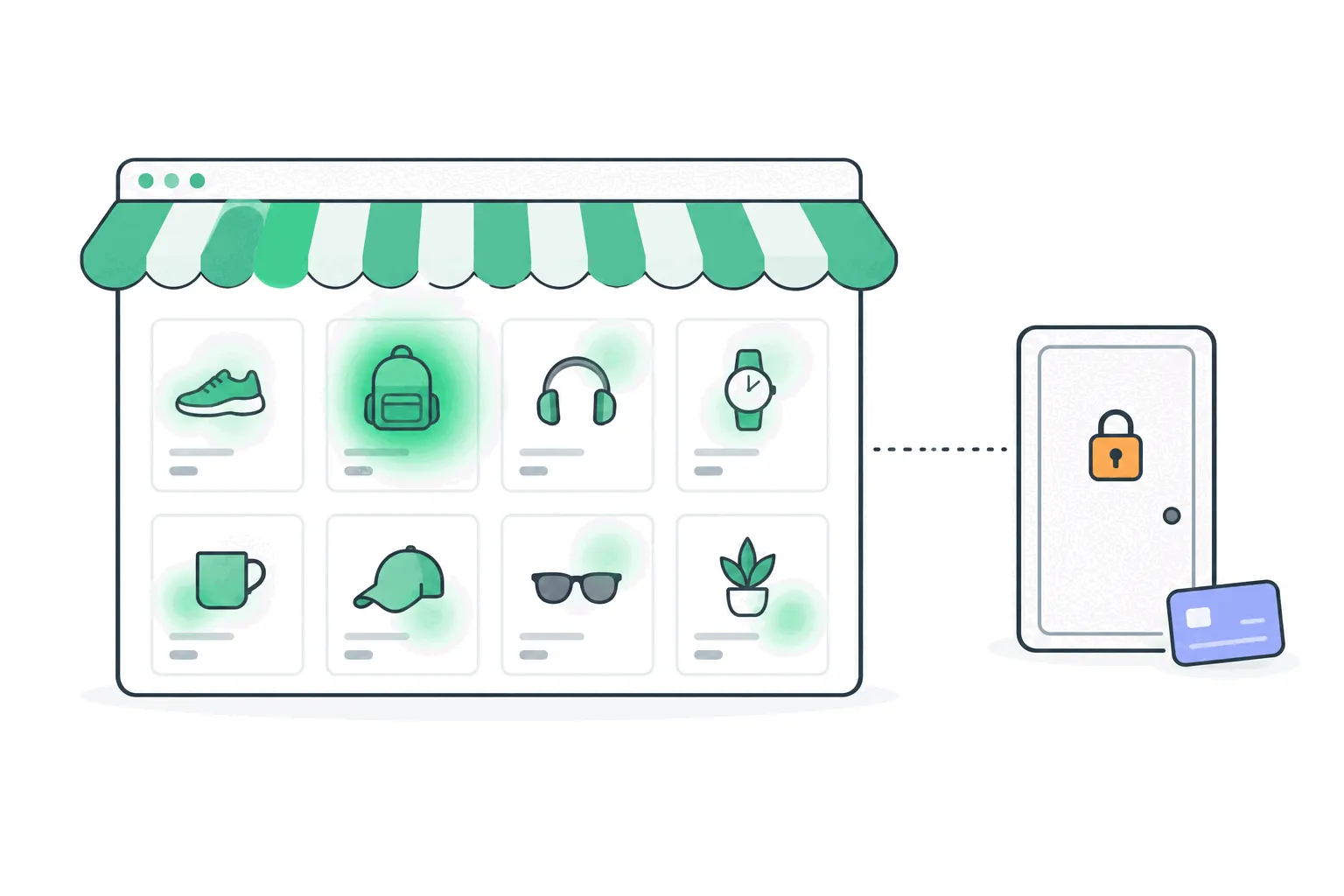
Checkout tracking on Shopify now runs through pixels, full stop. Custom pixels and app pixels are the sanctioned mechanism, and they load across the storefront, checkout, thank-you and order-status pages - but inside sandboxes that limit what a script can reach, stricter for app pixels than custom ones. The practical consequences: the Google & YouTube app handles its own checkout events, so GA4 purchase tracking survives the new rules without extra work, and any other tool's checkout coverage depends on how well it works within a pixel sandbox, which is a question to ask the vendor directly rather than assume.
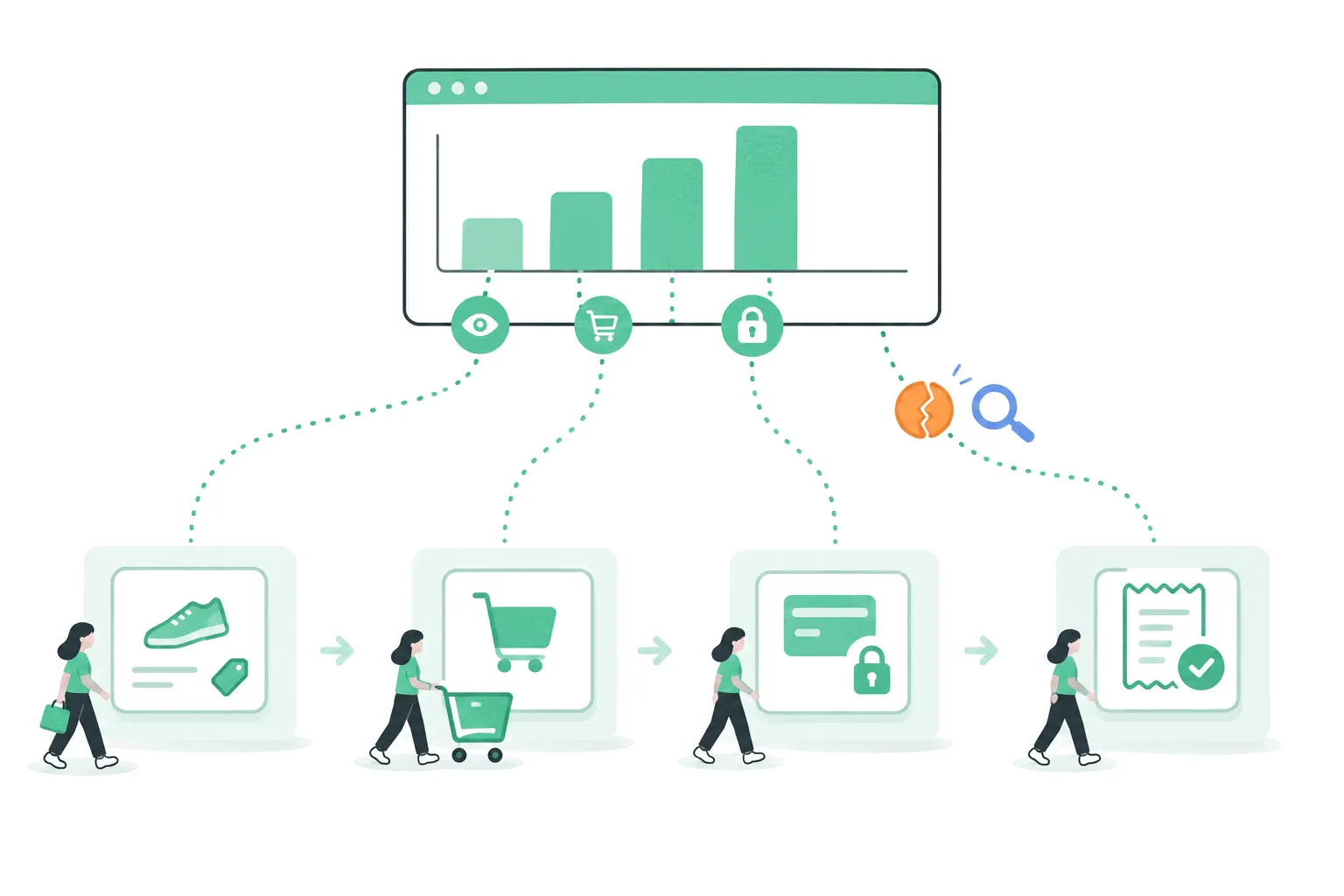
This is also why behavior tools like heatmaps go dark at the checkout door on non-Plus plans - the heatmaps guide covers that wall in detail. For funnel numbers it matters less than it sounds: checkout entry and completion still arrive as events, so you can measure where the checkout leaks even where you can't film it.
Route two: a lighter tool through an app embed
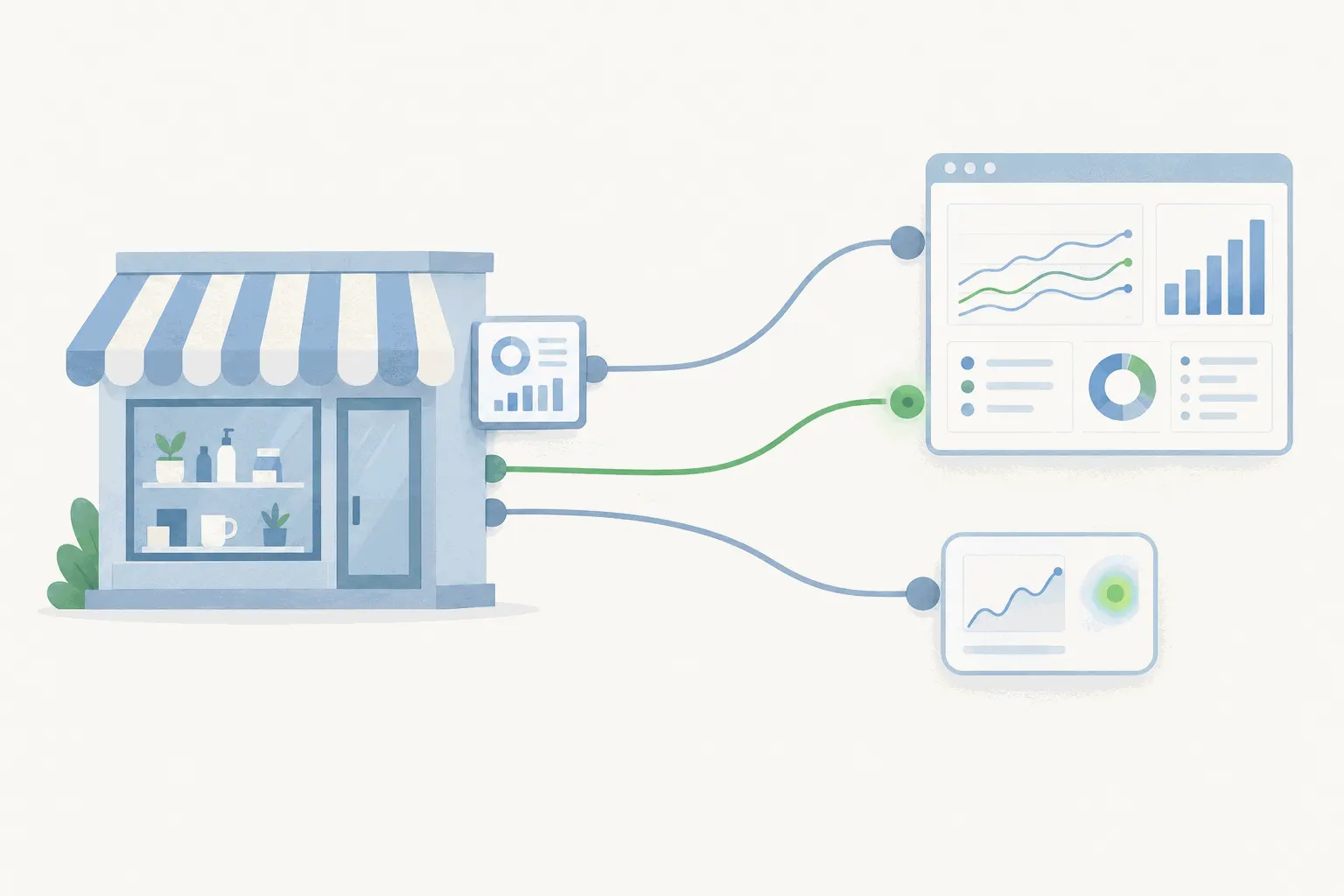
If GA4 is more machine than the store needs, the third-party route is genuinely pleasant on Shopify. Since Online Store 2.0, tools install as theme app extensions: add the app from the App Store, toggle its embed on under Online Store > Themes > Customize > App embeds, and the script runs on every storefront page without touching theme code. Uninstalling actually removes it, which retired the old problem of orphaned snippets rotting in themes. Tools without a Shopify app still install the classic way, one snippet in theme.liquid above the closing head tag, after duplicating the theme as an undo button.
Bigdelta's Shopify app - ours, so judge accordingly - installs the combined stack this way: web analytics, heatmaps, session replays, funnels and customer profiles from one install, with a free tier covering stores under 100K pageviews a month. The store-specific advantage is the join: visits and traffic sources appear next to the orders and revenue they produced, so channels rank by the orders they drove rather than the clicks they sent, and the checkout funnel comes with the session replays behind each step. The app connects to Shopify's own order data through its APIs, which is how the revenue view stays complete despite the checkout script rules above.
The consent settings that shape all three routes
Shopify's customer privacy settings, under Settings > Customer privacy, sit upstream of every tracking tool you install. Turn on the cookie banner for a region and data collection there waits for consent - which is the compliant behavior, and also why stores serving Europe see lower session counts in every tool at once after enabling it. In the EEA and UK, web pixels need marketing and analytics permissions granted before they fire at all, and the settings include a Google Consent Mode integration so consent state reaches GA4 properly. Configure this once, deliberately, and the gap between your tools' numbers stays explainable instead of mysterious.
Verify before you trust it
Whichever route you took, ten minutes of verification saves a month of quietly wrong data:
- Visit the storefront in a private window on your real domain and confirm the tool records the visit - GA4's Realtime report, or the live view in a lighter tool.
- Click into a product, add to cart and begin checkout, then confirm those events arrived and only once each - twice each means a stacked install.
- Place a test order end to end and check the purchase lands with the right revenue.
- Check from a phone too, since most store traffic is mobile and a consent banner misbehaving on small screens suppresses exactly that data.
- Exclude yourself and your team, or the merchandising team becomes your most engaged customer segment.
Which route for which store
A single-store merchant whose questions are sales-shaped already has the answer installed - learn the built-in reports before adding anything. Add GA4 when acquisition is the expensive question: which campaigns, channels and landing pages produce buyers, tracked with the depth the GA4 ecommerce setup provides. Add a lighter combined tool when the question is what shoppers do between arrival and order, and you want traffic, behavior and revenue answered in one place rather than three tabs. And whichever you add, add one - stores accumulate tracking scripts like drawers accumulate cables, every one slows the storefront a little, and the wider tool landscape rewards choosing by your most expensive open question rather than collecting.