How to set up ecommerce tracking in Google Analytics 4
Until ecommerce tracking is wired up, GA4 counts your store's visitors and knows nothing about its money. What the ecommerce events are, the one-click routes on Shopify and WooCommerce, the manual build, and how to test it with a real order.
What ecommerce tracking actually adds
A plain GA4 install on a store counts visits and pageviews, and that's all. It doesn't know a product was viewed, a cart was filled, or money changed hands - so revenue reports sit empty, the checkout funnel is invisible, and "which channel drives sales" is unanswerable. Ecommerce tracking is the fix: a set of standard events that carry product and money data, feeding GA4's whole Monetization section.
The good news for most store owners is that setting it up is no longer developer work. The major platforms send the events for you through official integrations, and the manual build is only required for custom stores. This guide covers all three routes, then the verification step that everyone skips and shouldn't - because ecommerce tracking has a special failure mode where broken data looks plausible for months.
One scope note: this post is about the ecommerce event layer specifically. The general key-events system it plugs into is covered in the conversion tracking guide, and what to do with store data once it flows is the ecommerce analytics post's territory.
The events, and the parameters that make them work
Three parameters do the heavy lifting, and each has a failure mode. Every money-carrying event needs value and currency together - a value without its currency gets dropped from revenue. Every purchase needs a unique transaction_id, which is how GA4 avoids counting the same order twice when a customer reloads the receipt page. And every event carries an items array - the products involved, up to 200 of them - which is what makes product-level reports possible at all. When ecommerce data goes wrong, it's almost always one of these three.
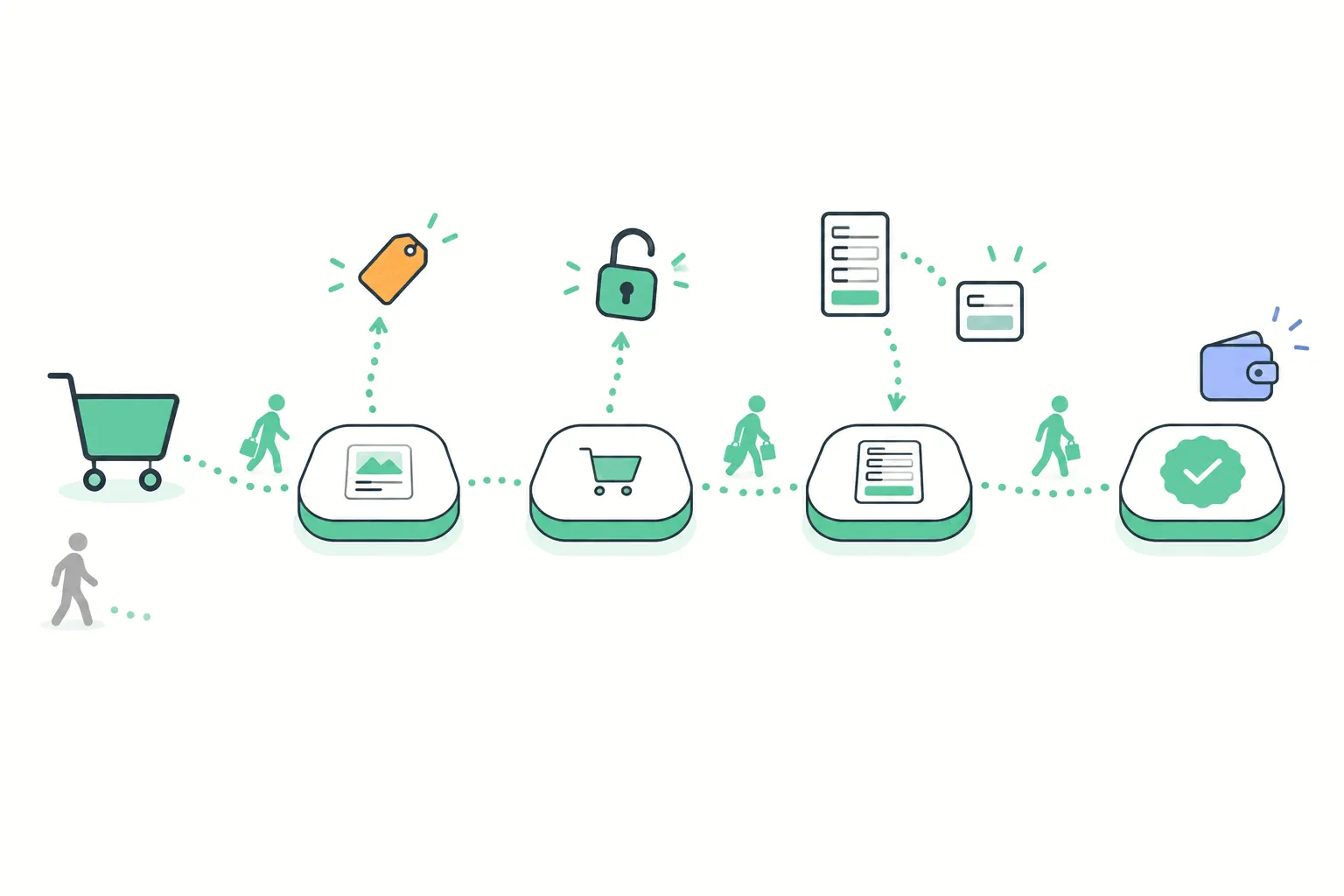
GA4's recommended ecommerce events follow the shopper's path. The core set:
- view_item - a product page was viewed, carrying which product and its price.
- add_to_cart (and remove_from_cart) - the cart changed.
- begin_checkout - the checkout started, the funnel's first gate.
- add_shipping_info and add_payment_info - the mid-checkout steps.
- purchase - the sale, carrying transaction_id, value, currency, tax, shipping and the items bought.
- refund - the anti-purchase, so revenue reports stay honest after returns.
Route 1: Shopify
On Shopify the integration is the official Google & YouTube sales channel: install it from the app store, connect your Google account, and link your GA4 property. Shopify's docs confirm that once the GA4 tags are set up this way, the ecommerce events are tracked automatically - product views, carts, checkout steps and purchases flow without theme edits or code.
Practical notes from the trenches: give it a day before judging the data (processing lag plus the integration's own setup time), and resist adding a second manual GA4 tag alongside the channel - double-tagging is the classic Shopify mistake, and it double-counts everything. If you had an old manual gtag install before adding the channel, remove it.
Route 2: WooCommerce
WooCommerce's answer is the free Google Analytics Integration plugin from Woo themselves: install it, paste your GA4 Measurement ID under the integration settings, and it sends the ecommerce set - purchases, add-to-carts and cart removals, checkout initiation, plus product impressions and clicks from listing pages. For most stores that's the whole job.
The WordPress caveat applies here with extra force: if Site Kit or another plugin is also inserting a GA4 tag, you can end up with two tags and doubled numbers. One plugin owns Google Analytics - pick which, and remove the other's tag output.
Other platforms, briefly
BigCommerce, Squarespace, Wix and the rest each ship their own GA4 integration, and they differ in exactly one dimension that matters: how much of the ecommerce event set they actually send. Some pass the full purchase funnel, some only pageviews and a purchase event, some let you paste a Measurement ID and stop there. We haven't verified each platform's current depth, and their docs change - so the honest advice is the verification section below, which settles what your platform sends regardless of what its marketing page says.
The GTM middle path
Between one-click plugins and hand-written code sits Google Tag Manager, and for stores it earns its keep in one specific situation: the site's theme or platform already pushes ecommerce data into the dataLayer, but nothing forwards it to GA4. Plenty of themes and older setups do exactly this - the data is sitting there, structured, unheard. GTM's GA4 event tags can read it and send the standard events without touching the site's code again.
The way to find out if you're in this situation costs five minutes: open your store with GTM's preview mode (or just the browser console) and look at what the dataLayer contains during an add-to-cart. If ecommerce objects appear, a GTM container and a handful of tags completes the wiring. If the dataLayer is empty, GTM has nothing to forward and you're back to the platform or manual routes - a tag manager can only route data that something else produces.
Route 3: the manual build
Custom stores wire the events themselves, and this is genuinely developer territory: each shopper action pushes the corresponding event with its parameters, either directly via gtag or - the more maintainable pattern - into the dataLayer for Google Tag Manager to forward. The shape is always the same: event name from the standard list, value and currency, and the items array describing the products, structured exactly as Google's reference specifies.
Two pieces of hard-won advice for the build. Use Google's event names and parameters verbatim rather than inventing your own - the Monetization reports only populate from the standard names. And generate transaction_id from the order system, not the page - a timestamp-based ID minted on the receipt page creates a new "order" every time someone refreshes it.
A warning about old tutorials
Ecommerce tracking is where outdated advice does the most damage, because the previous Google Analytics did all of this completely differently. Universal Analytics called it "enhanced ecommerce", used its own plugin and event vocabulary, and none of it works in GA4 - yet tutorials from that era still rank in search and still circulate in forum answers. The tell-tale signs a guide predates GA4: it mentions enhanced ecommerce or ec.js, its screenshots show a Conversions menu with Ecommerce settings toggles, or it asks you to "enable ecommerce" in the view settings (GA4 has no views at all).
The current-era markers to look for instead: event names from the list above, the items array, and Admin screens matching what you actually see. When in doubt, Google's own ecommerce reference is the arbiter - it's dry, but it's never three years stale.
Verify with a real test order
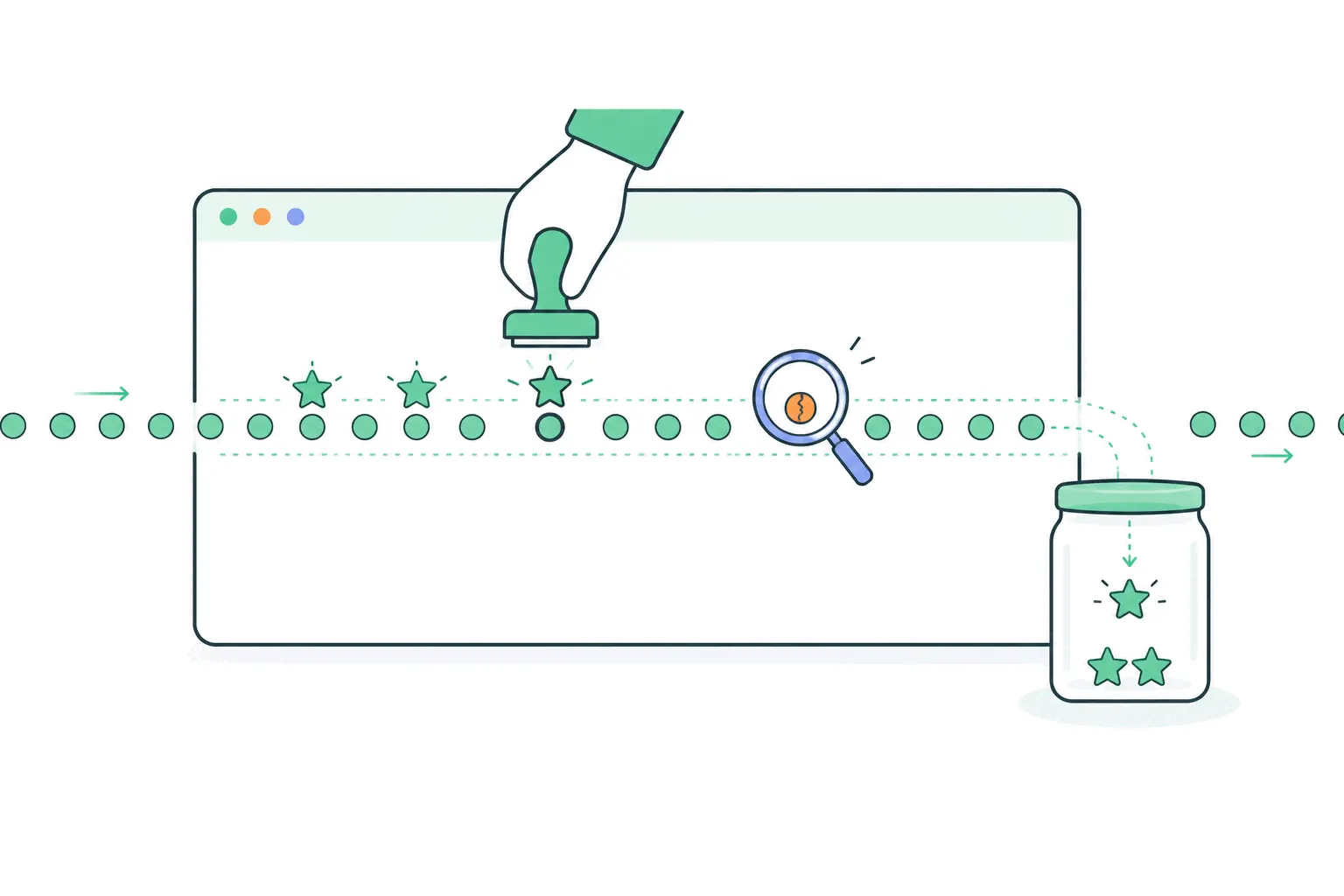
Whatever the route, the setup isn't done until a test purchase has been watched end to end. Open DebugView, browse a product, cart it, and buy it with a test payment. You're checking four things: every step's event fires once (not zero, not twice), the purchase carries a transaction_id, value and currency travel together, and the items array actually lists the product. Realtime shows the events within minutes - the full Monetization reports fill in over a day or two.
Then do the reload test nobody does: refresh the order confirmation page and confirm the purchase count didn't grow. And once real orders flow, reconcile a week of GA4 revenue against your store's own order total - they won't match perfectly (blockers and consent gaps guarantee that), but a gap beyond roughly 10-15% points at a tracking hole worth finding.
The failures that corrupt revenue data
The common defense is the reconciliation habit: GA4 revenue against store revenue, monthly, with a known-acceptable gap. It turns every failure above from a silent drift into a visible discrepancy.
Ecommerce tracking's bugs are quiet - the reports show numbers either way. The recurring ones:
- Duplicate purchases - receipt-page reloads with a non-unique transaction_id, or two tags both sending the event. Revenue inflates and nobody notices until reconciliation.
- Value without currency - the event arrives, the money silently doesn't.
- Empty items arrays - totals look fine, but every product-level report is blank.
- Refunds never sent - reported revenue drifts above reality by exactly your return rate.
- Test orders in production data - filter your own IPs and use obvious test product names you can exclude.
- A checkout on another domain - the purchase credits a referral instead of the real source unless cross-domain tracking is configured.
"But my platform already shows revenue"
Fair question - Shopify's and WooCommerce's own dashboards report orders and revenue without any of this setup, so why bother? Two reasons. The platform counts commerce and GA4 counts behavior, and the value is in the join: which traffic source produced the revenue, what the path to purchase looked like, where non-buyers fell out. The platform dashboard knows a sale happened - the analytics knows what four hundred other sessions did instead of buying, which is where the improvable part of the business lives.
And expect the two revenue numbers to disagree once both exist. The platform counts every order at the till, while GA4 sees only orders from trackable, consenting, unblocked sessions - so GA4 reads lower, structurally. That's normal across all analytics pairs. The platform is the accounting truth, GA4 is the behavioral truth, and the reconciliation gap between them - once you know its usual size - is itself a health metric for your tracking.
The payoff: the funnel and the money view
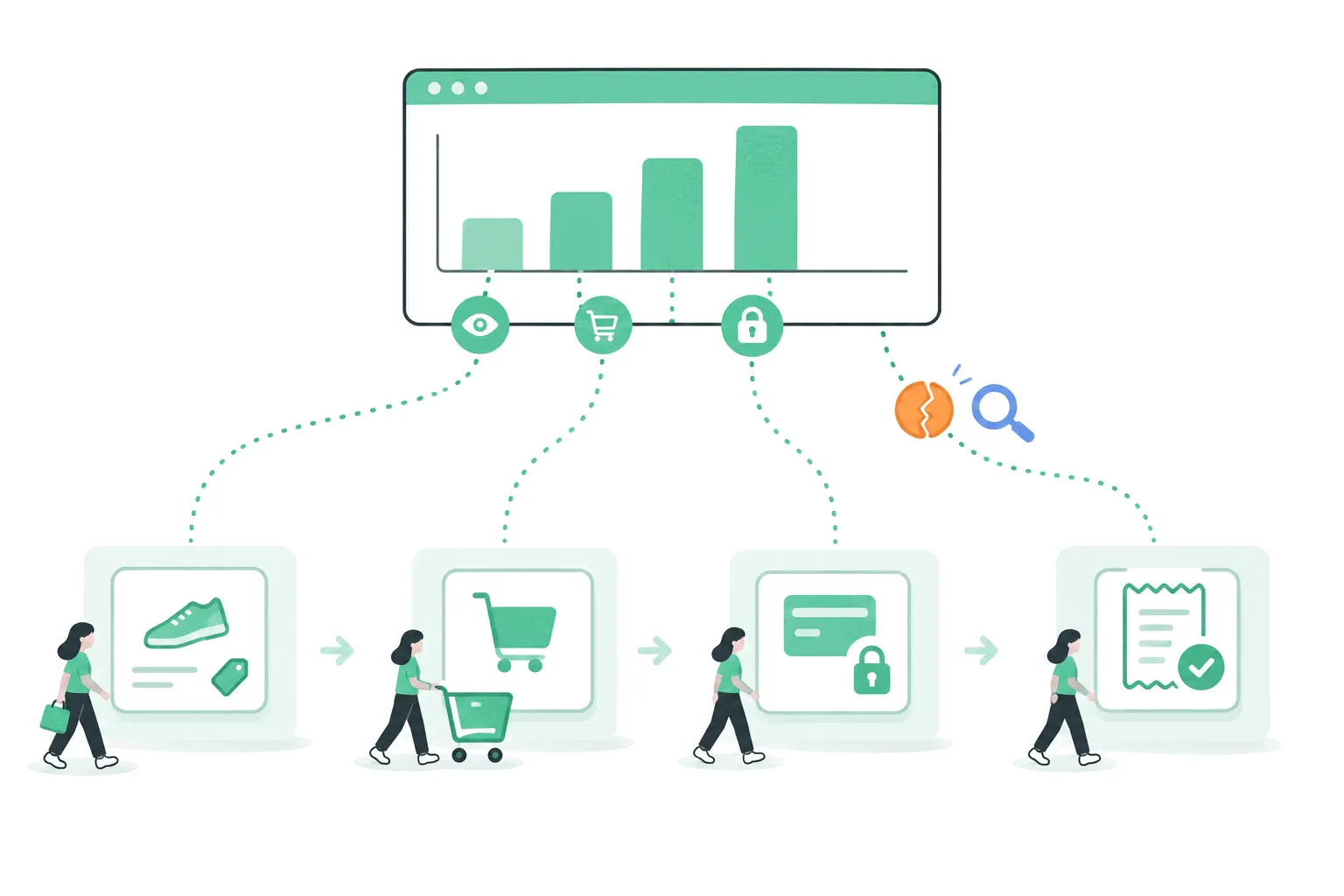
With the events flowing, GA4's Monetization section comes alive: Ecommerce purchases for product-level performance, and the Purchase journey and Checkout journey reports, which turn the event sequence into the abandonment funnel - what share of sessions viewed a product, carted, started checkout, paid. That funnel is where the setup pays for itself, because it names the step that leaks and the fixes are step-specific.
The traffic reports upgrade too: with purchase data attached, Traffic acquisition answers in revenue instead of sessions, which reorders most stores' ideas about their best channel. Expect disagreement with your ad platforms' revenue claims - different attribution rulebooks - and treat GA4's version as the one consistent yardstick across all channels.
The practical takeaway
Pick your route - the official channel on Shopify, the free plugin on WooCommerce, the dataLayer build on custom stacks - then spend the twenty minutes on a test order that most setups never get, and put a monthly reconciliation against store revenue on the calendar. That's the whole discipline. And if GA4's ceremony is the obstacle rather than the events themselves, simpler routes exist: Bigdelta's ecommerce view puts orders and revenue next to the visits that produced them - on Shopify, via the app - with the funnel included. However you wire it, a store that can't see its money in its analytics is flying on vibes, and the fix is one integration away.