How to set up conversion tracking in Google Analytics 4
GA4 tracks nothing as a conversion until you tell it what one is. The full setup for the four common cases - thank-you pages, forms, purchases and clicks - plus the verification step and the mistakes that fake success.
Key events: the concept in two minutes
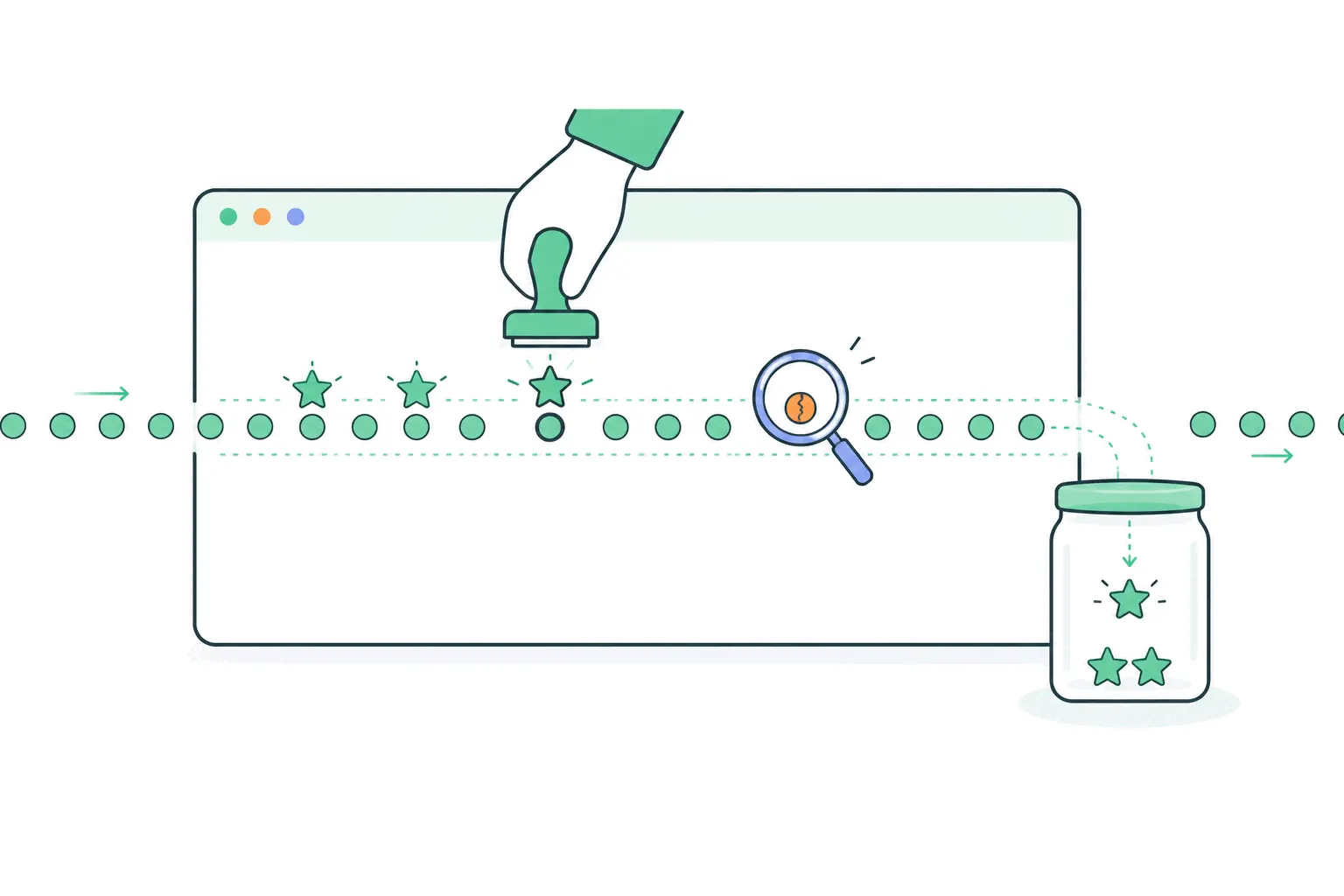
Everything in GA4 is an event - pageviews, clicks, scrolls, all of it - and a conversion is just an event you've flagged as one that matters. GA4's current name for that flag is a key event (Google renamed on-site conversions to key events, reserving "conversion" for the ads side, so older tutorials saying "mark as conversion" mean the same toggle). Until you flag something, the conversion columns in every report sit at zero - which is the single most common reason a new GA4 setup looks broken. It isn't broken. It's unconfigured.
So conversion tracking in GA4 is always the same two moves: make sure an event fires when the thing you care about happens, then mark that event as key. Sometimes the event already exists and step one is free. Sometimes you have to build it. The four sections below cover the four cases that account for nearly every site: a thank-you page, a form, a purchase, and a click.
This post is GA4-specific on purpose. The tool-agnostic view of what's worth counting - and how to do this without any code at all - is its own post.
The simplest possible version
If an event you care about already shows up in your reports - say your platform already sends a `sign_up` event - the whole setup is one toggle. Two verified routes: in Admin > Data display > Key events, hit Create and name the event; or in Admin > Events, find the event in the table and flip "Mark as key event". Editor-level access required, and allow up to a day before standard reports reflect it.
Check your Events table before building anything. Enhanced measurement means many sites already collect more than they realize - file downloads, outbound clicks, video plays, scrolls - and the event you were about to engineer may already be sitting there, unflagged.
Case 1: the thank-you page (no code, most sites)
The workhorse pattern for leads, signups and contact forms: the action ends on a confirmation page, so a visit to that page *is* the conversion. GA4 lets you build this without touching code, because the page_view event on the thank-you page already fires - you just need a named event that means "page_view, but on that page".
The steps: Admin > Data display > Events > Create event, choose Create without code, name it something like generate_lead (GA4's recommended-event names are worth using - reports treat them better), base it on page_view, and set the condition page_location contains /thank-you (or whatever your confirmation URL is). Toggle "Mark as key event" on while you're there, set a default value if a lead has one, save. Within a day, visits to that page count as conversions everywhere GA4 reports them.
One design requirement makes this pattern honest: the thank-you page should only be reachable by converting. If people can land on it directly - from a bookmark, a shared link, a search result - those visits count too. Keep the page out of your sitemap and navigation, noindex it, and if the numbers ever look too good, check how people are arriving at it.
Case 2: forms that don't go anywhere
Plenty of modern forms submit in place - no redirect, an inline "thanks!" message - which removes the page-load the previous pattern counts. GA4's enhanced measurement offers a form_submit event for exactly this, and it's worth trying first: if it appears in your Events table and fires when you test the form, mark it key and you're done.
The honest caveat is that automatic form detection is the flakiest part of enhanced measurement. Depending on how a form is built, form_submit can fire on failed validation, fire twice, or not fire at all - single-page apps and custom JavaScript forms are the usual offenders. Test with a real submission and watch DebugView before trusting it. When it proves unreliable, the fixes in order of effort: give the form a redirect and use the thank-you pattern, have a developer push a custom event on genuine success, or use Google Tag Manager's form trigger - with the same test-before-trusting rule.
Case 3: purchases
Ecommerce conversions run on a standard set of events - begin_checkout, add_shipping_info, add_payment_info, purchase - carrying structured data like value, currency and items. The purchase event is automatically treated as the conversion, and the whole checkout funnel becomes measurable when the full set fires.
The practical question is who sends them. On hosted platforms, usually the platform: Shopify's GA4 integration sends the ecommerce events for you, WooCommerce does it through Site Kit or a dedicated plugin, and most ecommerce stacks have an equivalent. On a custom build, this is developer work against Google's ecommerce documentation - the one case in this post that genuinely requires code. Either way, verify with a real test order end to end, because a purchase event with a wrong value quietly corrupts every revenue report downstream.
Case 4: clicks, calls, and everything else
The remaining conversions are clicks: a mailto or tel link, an outbound click to a booking service, a download. Enhanced measurement already emits click and file_download events for some of these - check the Events table first, as ever. For clicks it doesn't catch, the no-code ceiling arrives: you'll need either Google Tag Manager (a trigger on the specific element, an event tag, then mark the event key in GA4) or a line of code pushing a custom event.
A fair rule for small teams: if a conversion needs GTM gymnastics to track, first ask whether a page-based version exists. Sending the booking click through a /redirecting-you page, or the download behind a short confirmation, converts an engineering problem back into the thank-you pattern. Slightly clunkier for the visitor, dramatically simpler to measure - sometimes that trade is right.
The settings that change what the numbers mean
Two switches deserve a deliberate choice rather than a default. Counting method: each key event counts either once per event or once per session - a lead form should usually count once per session (one visitor filling it twice is one lead), while a purchase counts every time. It's set per key event, in the key event's settings.
Attribution: GA4 assigns conversion credit across the visitor's previous traffic sources using data-driven attribution by default, with a configurable lookback window. The defaults are sensible; what matters is knowing they exist, because they're why GA4's conversion-by-channel numbers never quite match your ad platforms', which count by their own rules. Different rulebooks, both internally consistent, endlessly mistaken for bugs.
Give conversions a value, even a rough one
GA4 lets every key event carry a monetary value - automatic and exact for purchases, optional and estimated for everything else. It's worth setting even when the estimate is crude: if a qualified lead is worth roughly $50 to you, a generate_lead event valued at 50 turns your conversion reports into revenue-shaped reports, and suddenly "organic brought 30 conversions, paid brought 12" becomes a comparison in dollars rather than tallies.
The estimate doesn't need to be defensible to a CFO, just consistent - the value's job is to weight channels and pages against each other, and any stable number does that. If you run ads, it matters more: value is what lets bidding strategies optimize toward worth rather than volume. Set it where you create the key event, revisit it yearly, and resist the temptation to tune it until the reports say what you hoped.
Verify before you believe
Every conversion setup gets one mandatory test: trigger it yourself and watch it land. Two tools exist for the job. Realtime (Reports > Realtime) shows key events within a minute or two - convert in one tab, watch the key-events card in the other. DebugView (in Admin) goes deeper, showing your test device's events as a live stream, which is where you catch the form event firing twice or the purchase arriving without a value.
Then wait before judging the reports. Standard reports process on a lag of up to a day or two, so a conversion that showed in Realtime but not in yesterday's report is usually just early, not lost. Recheck after 48 hours before debugging anything.
The failures that fake success
The common thread: each failure is invisible in the totals and obvious the moment you test the path yourself. One real test per conversion, repeated after any site change that touches the path, is the whole defense.
Conversion tracking's worst failures produce plausible numbers. The recurring ones:
- A thank-you page reachable directly - conversions inflated by people who never converted. Fix the page's reachability, not the report.
- form_submit firing on failed validation - every attempt counts, not every success. DebugView with a deliberately failed submission reveals it.
- A key event based on an event that never actually fires - zero conversions forever, reported confidently. The Events table shows whether the base event has any count at all.
- A checkout on a different domain - the visitor "leaves" mid-purchase and returns as a new referral, splitting the conversion from its source. GA4's cross-domain settings (Admin > Data streams > Configure tag settings) exist for exactly this.
- Counting method mismatch - a newsletter form on every page counting once per event, crediting one enthusiastic visitor with five conversions.
Where the numbers show up
Once a key event has data, it surfaces in three places worth bookmarking. Reports > Engagement > Key events is the dedicated table - each key event with its count and value over the period. The Traffic acquisition report grows a key-events column, which is where the question that motivated all this setup gets answered: which sources send visitors who actually convert, as opposed to visitors who merely arrive. And once conversions exist, a funnel exploration can show the path to them - the step from counting conversions to understanding where the missing ones leak away.
If you run Google Ads
Key events are also what Google Ads imports to optimize campaigns against - link the accounts and Ads can bid toward the conversions GA4 measures. Expect the two systems to disagree on counts (attribution rulebooks again), and expect newly imported conversions to take about a day to start flowing. If Ads optimization is the main reason you're here, define the key events first, generously - the bidding can only learn from what's flagged.
The practical takeaway
Make the event exist, mark it key, test it yourself, and choose the counting method on purpose - that's the entire discipline, applied four ways. Start with the thank-you pattern because it's the one you can build today without anyone's help, and let the harder cases earn their complexity. And if the ceremony of it all is the obstacle - events, DebugView, attribution settings, for one contact form - simpler tools make a conversion a checkbox: in Bigdelta, events defined without code feed the same funnels and profiles. The point was never the plumbing. It's knowing which visitors did the thing your site exists for.