How to write a tracking plan
A tracking plan is a short list of what your website measures, why, and what each event is called. Here is how to write one before anyone adds tracking, and four example plans to copy.

What a tracking plan is
A tracking plan is a list of the things your website measures. For each one it says what the event is called, when it fires, why you want it, and who looks after it. It usually lives in a spreadsheet. Nobody has to write code to make one.
The plan comes first and the tracking follows it. You write the rows. A developer, a no-code tool or your analytics tool's own settings turn each row into a real event. When someone asks what "checkout_started" means six months from now, the plan is where the answer lives.
An event, if the word is new to you, is a record that a visitor did something: clicked a button, submitted a form, finished paying. Your analytics tool counts pageviews on its own. Events are the things you have to ask for, and the plan is how you ask.
Why the document comes before the tracking
Three things go wrong when tracking gets added without a plan.
The first is that nothing matches. One customer-data vendor's naming guide shows the usual result: the same signup logged as "Sign up", "Signup", "signed up" and "User Signed Up" by four different people. Your analytics tool treats those as four different events, so no chart adds them up. Every number built on them is wrong, and nobody notices for months.
The second is that nobody remembers why an event exists. The same guide says every event in the plan should justify why it needs tracking. Without that column you end up with a dashboard full of numbers nobody uses and no way to tell which ones are safe to delete.
The third is that the person adding the tracking is rarely the person who wants the data. Hand a developer a vague request and you get their guess at what you meant. A plan is a spec, and a spec gets built the way you wrote it.
There is also a timing problem. Analytics tools only count from the day an event goes live. Data from before that day cannot be recovered, so an afternoon spent writing the plan is cheaper than the month of missing data you get from skipping it.
The columns
Vendors who sell tracking-plan software list a dozen columns. One widely copied template has eleven. A beginner needs six.
Event name. The exact name as it will appear in your analytics tool, character for character. Everyone copies from this cell, so it has to be exact.
When it fires. The visitor action that triggers the event, written so a developer cannot misread it. "When the order confirmation page loads" is good. "When someone buys" is not, because a purchase has several moments and you have to pick one.
Why it matters. The question this event answers, in one sentence. If you cannot fill this cell, delete the row. This rule alone keeps most plans from bloating.
Properties. The extra details sent along with the event. A purchase event might carry the order value and the payment method. Specifics belong here, so you have one order_completed event with a payment_method property rather than one event for cards and another for PayPal.
Owner. One named person, not a team. A 2026 guide from Customerscore.io puts it plainly: assign "one named person per event, not a team". When the owner leaves, the row gets a new name or gets retired.
Status. Planned, live, or retired. Some template guides use four states, adding "validated" between live and retired. Three states are enough for a small site. Never delete a row. Mark it retired, so that a chart which suddenly drops to zero has an explanation next to it.
Larger plans add a destination column for which tool receives each event. With one analytics tool you can skip it.
The naming rules that go at the top of the sheet
Write these four rules above the table so they outlive whoever wrote them.
Pick one shape. The common one is a thing plus a past-tense action: order_completed, form_submitted, video_played. Every major vendor teaches a version of it, and the post on which events to track covers why. The shape matters less than holding to it.
Pick one case. Lowercase words joined with underscores work in every tool and survive copy-paste. Whatever you choose, "Order Completed" and "order_completed" are two different events to your analytics tool, so mixing is not allowed.
Keep names short and fixed. Some tools cut event names off at 40 characters. A name must also never be built from data. The classic bad example is an event called "Sign Up - jake@example.com". The email belongs in a property, if it belongs anywhere.
Keep personal data out entirely. Most analytics tools' terms forbid sending anything that identifies a person, including inside event names and properties. The line is easy to draw. "Signup form submitted" tells you the form works. "Signup form submitted by jane@example.com" tells you who filled it in, which is exactly what analytics does not need to know. Use broad labels as properties, such as plan type or country, and never emails, names or phone numbers. Site search terms need care too, because visitors sometimes type personal details into search boxes.
Keep it small
One analytics vendor's own guidance is to hold a tracking plan to somewhere between 10 and 200 event types, and that vendor is paid to store them. For a small site the right number is the bottom of that range or below it. The Customerscore.io guide for early-stage SaaS suggests 5 to 8 core funnel events before expanding.
The test for each row is the "why it matters" cell. If the answer is "it might be useful later", it is not useful now, and you can add it the day a real question demands it. The post on website metrics makes the same argument for the dashboard: fewer numbers, watched regularly, beat many numbers nobody opens.
Most events in a small plan should chain into one conversion funnel. If an event is not a step toward your main outcome and does not explain a drop between steps, it probably does not belong in version one.
Example: an ecommerce store
The first five rows form the checkout funnel. The gap between checkout_started and order_completed is where most stores lose money, and the payment step in the middle lets you see whether the leak is at the address form or at the card.
- product_viewed: fires when a product page loads. Why it matters: Shows which products draw attention, to compare against which ones sell. Property to capture: product_id.
- product_added_to_cart: fires when the add-to-cart button is clicked. Why it matters: The first sign of buying intent and the top of the checkout funnel. Property to capture: price.
- checkout_started: fires when the first checkout step loads. Why it matters: Where a full cart turns into a decision. Property to capture: cart_value.
- payment_info_entered: fires when the payment step is submitted. Why it matters: Separates address-form drop-offs from payment drop-offs. Property to capture: payment_method.
- order_completed: fires when the order confirmation page loads. Why it matters: The conversion every other row is measured against. Property to capture: order_value.
- discount_applied: fires when a discount code is accepted. Why it matters: Shows whether promotions bring orders or only cut margin. Property to capture: discount_code.
- newsletter_subscribed: fires when the email signup form submits. Why it matters: The best outcome for a visitor who is not buying today. Property to capture: form_location.
Example: a B2B SaaS site
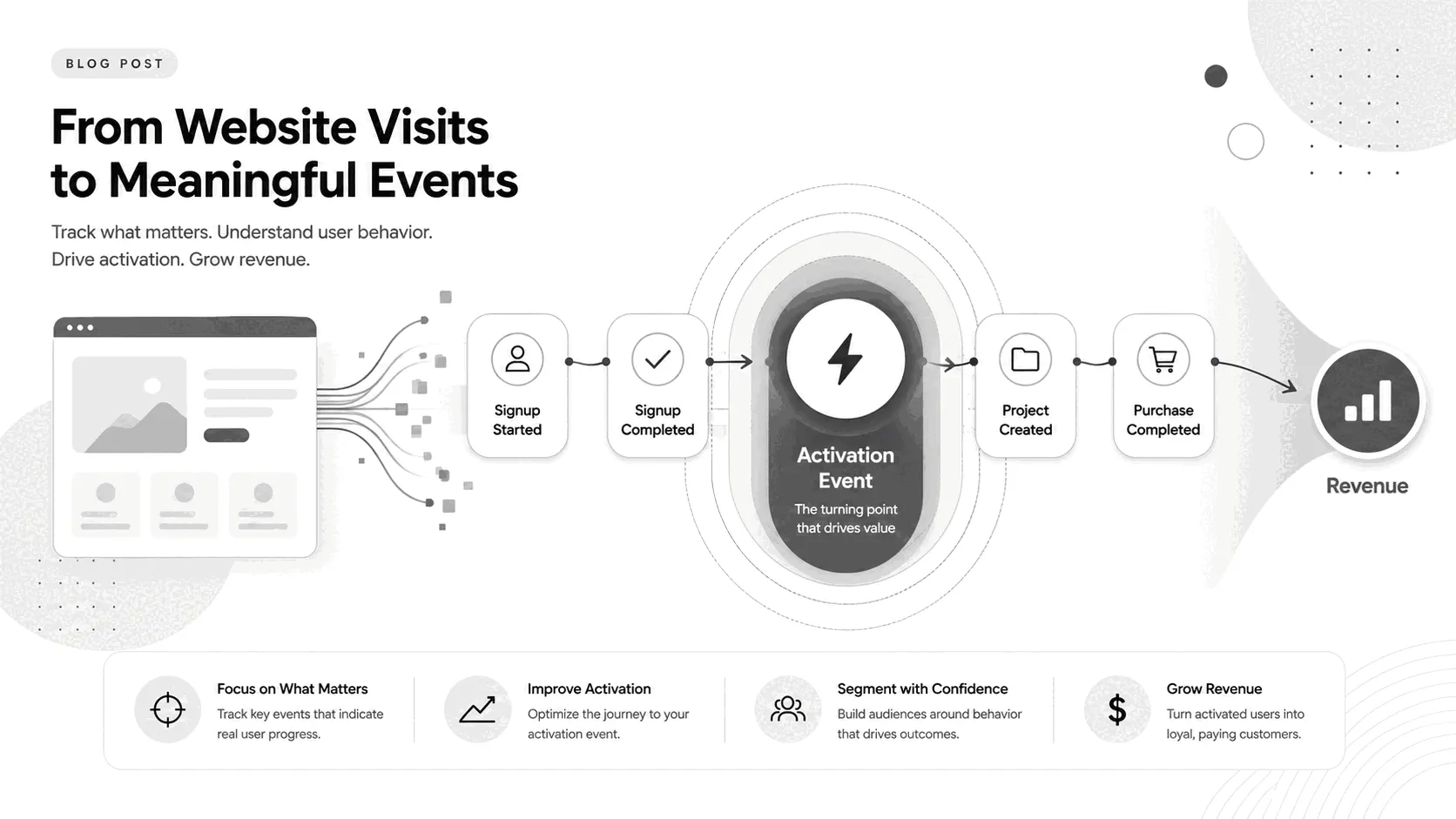
The last three rows fire inside the product rather than on the marketing site, and they belong in the same plan because the site's job is to feed them. A visitor who signs up and never creates a project is a marketing win and a product loss, and one plan shows both. The project_created row is a placeholder. Replace "project" with whatever first action predicts that your users stay.
- pricing_viewed: fires when the pricing page loads. Why it matters: The strongest intent signal a marketing site has. Property to capture: utm_campaign.
- signup_started: fires when the signup form gets its first keystroke. Why it matters: The top of the signup funnel. Property to capture: plan_selected.
- signup_completed: fires when the account is created. Why it matters: The conversion the site exists for. Property to capture: signup_method.
- demo_requested: fires when the demo form submits. Why it matters: The sales-led conversion, kept separate from self-serve. Property to capture: company_size.
- onboarding_step_completed: fires when a setup step finishes. Why it matters: Shows where new accounts stall before reaching value. Property to capture: step_name.
- project_created: fires when the user creates their first project. Why it matters: The action that predicts a new user will stay. Property to capture: days_since_signup.
- subscription_started: fires when the first payment succeeds. Why it matters: Ties every row above it to revenue. Property to capture: plan_name.
Example: a blog or newsletter
The subscribe event is the only true conversion here, so the other rows exist to explain it. Knowing which article a subscriber was reading when they signed up tells you what to write more of. The issue_id property arrives through the UTM tags on your newsletter links, not through anything a developer has to build. The search_term property needs a note in the plan: strip anything that looks like an email before it is sent.
- article_read: fires when the reader scrolls past the end of the article body. Why it matters: Separates readers from visitors who left at the headline. Property to capture: article_slug.
- newsletter_subscribed: fires when the subscribe form submits. Why it matters: The one conversion a content site has. Property to capture: article_slug.
- email_link_clicked: fires when a visitor arrives from a link in an issue. Why it matters: Shows which issues bring readers back. Property to capture: issue_id.
- outbound_link_clicked: fires when a link to another site is clicked. Why it matters: For affiliate or recommendation posts, this is the money click. Property to capture: destination_domain.
- share_clicked: fires when a share button is clicked. Why it matters: Shows which posts readers pass along. Property to capture: platform.
- search_performed: fires when the site search runs. Why it matters: Tells you what readers cannot find. Property to capture: search_term.
Example: a lead-gen or local service site
Phone taps deserve the row. For a plumber or a dentist, the call is often the conversion, and a form-only plan never sees it. Tracking conversions that leave the site is the difference between a plan that counts leads and one that counts a fraction of them.
- service_page_viewed: fires when a service page loads. Why it matters: Shows which services draw interest, to compare against which get booked. Property to capture: service_name.
- quote_requested: fires when the quote or contact form submits. Why it matters: The main conversion. Property to capture: service_type.
- phone_clicked: fires when the phone number link is tapped. Why it matters: The conversion a form never sees, and on phones often the biggest one. Property to capture: page_path.
- booking_completed: fires when an online booking is confirmed. Why it matters: The second main conversion for businesses that take appointments. Property to capture: appointment_type.
- directions_clicked: fires when the map or directions link is tapped. Why it matters: A visitor planning to show up in person. Property to capture: location_name.
- chat_started: fires when the live chat window opens. Why it matters: Intent that often turns into a lead off the site. Property to capture: page_path.
Keeping the plan honest
Plans rot quietly. A developer renames an event during a redesign. The site builder swaps a form plugin and the submit event stops firing. A page gets deleted and takes three rows with it. Even vendors who publish spreadsheet templates admit they are hard to keep up to date, because the sheet does not live where the work happens.
Two habits fix most of it. Add a "last checked" date to each row, and once a quarter open your analytics tool and confirm that each live event still fires with the properties the plan says it should. The Customerscore.io guide treats any event unchecked for 90 days as broken until proven otherwise, which is strict but clarifying. Most tools make the check quick. In Bigdelta, for example, any visitor's profile shows every tracked event on a timeline with the properties that came with it, so confirming a row means finding one visit that should have fired it.
The second habit is to route every change through the plan. New feature, new row, and the row goes in before the code does. That order is the whole point of the document.
The practical takeaway
Open a spreadsheet. Six columns: event name, when it fires, why it matters, properties, owner, status. Write the four naming rules above the table. Pick the five to eight events that lead to your main outcome, copy the example that matches your site and edit it, then hand the sheet to whoever adds the tracking. Add a row when a question demands one, retire rows instead of deleting them, and check the live events once a quarter. That is the entire method, and a plan this size is one you will keep.