How to track page views on your site
One script counts page views on every ordinary site. The setup, the single-page-app exception, and which of the resulting numbers deserve attention.
What is a page view?
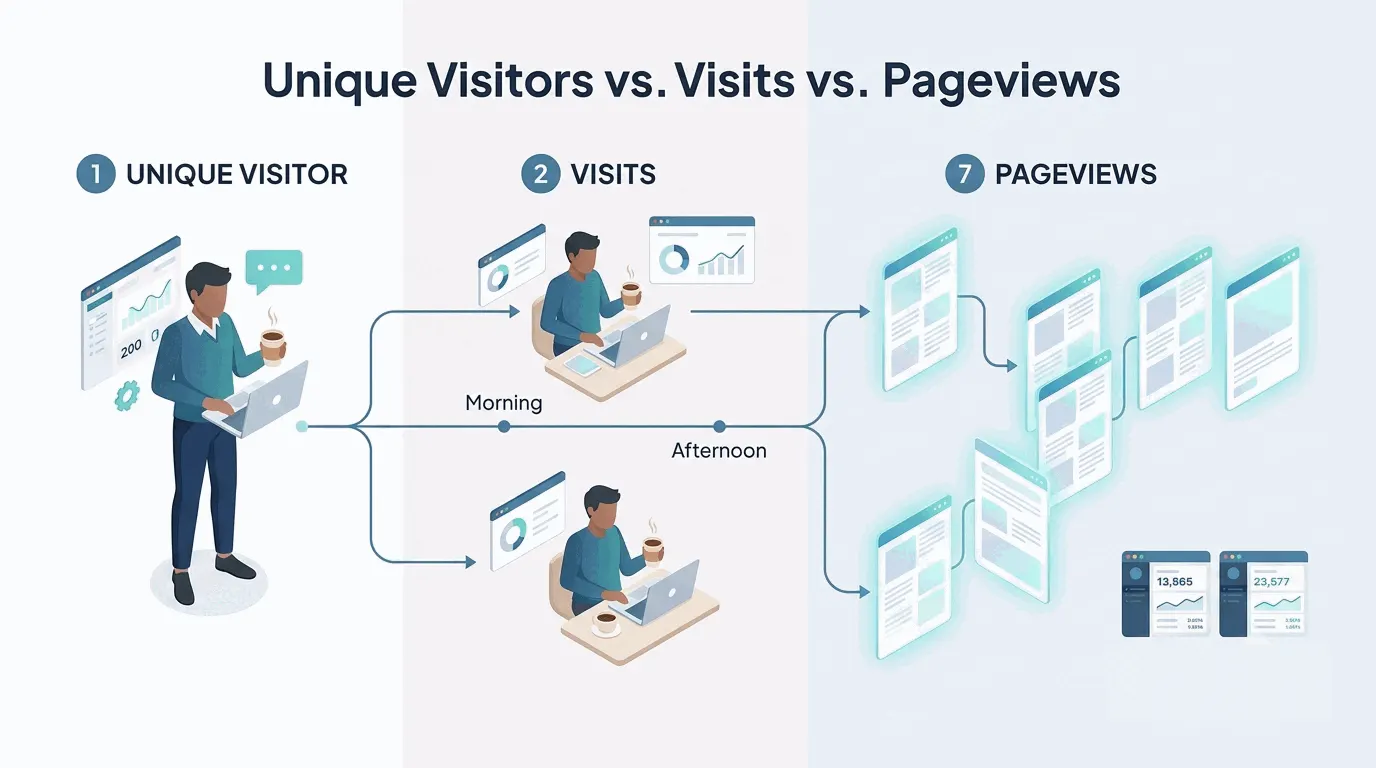
A page view is one page being loaded, or reloaded, in someone's browser. Open a page, that is one view. Refresh it, that is another. It is the rawest count an analytics tool keeps, and the building block the others are made from. How it differs from visits and visitors is its own topic, covered in page views vs visits vs unique visitors.
The standard way to track them
Every web analytics tool counts page views automatically once its script is on the site. There is nothing to define and no event to set up. The job is three steps: pick a tool, paste its snippet into the head of your site's template so it loads on every page, and verify the count moves.
Google Analytics is the common default. Its page_view event fires each time a page loads, it is collected automatically, and Google's documentation notes you cannot turn the collection off. Lighter tools do the same job with less around it. Bigdelta, for example, counts visitors and page views in real time from the same one-script install, and its free plan covers sites under 100,000 page views a month.
Each recorded view carries a little context along with the URL: the page title, the referrer it was reached from, and the device type. That context is what lets the pages report split a page's views by source or device later, so nothing extra needs configuring now.
Where the snippet goes depends on the platform: a header-code box on most site builders, a plugin on WordPress, the template itself on a hand-built site. The tool's setup screen shows the exact route.
Check that the count moves
Before trusting anything, watch yourself get counted. Open the live site in a private browser window, click through three or four pages, and look at the tool's realtime view. Each page you opened should appear within a minute.
If nothing shows, the usual causes are a snippet pasted on one page instead of the site template, a caching plugin still serving the old pages, or an ad blocker in your own browser eating the test visit. A private window avoids most of that. A system-wide blocker does not, so try a second device before digging deeper.
Where to see page views per page
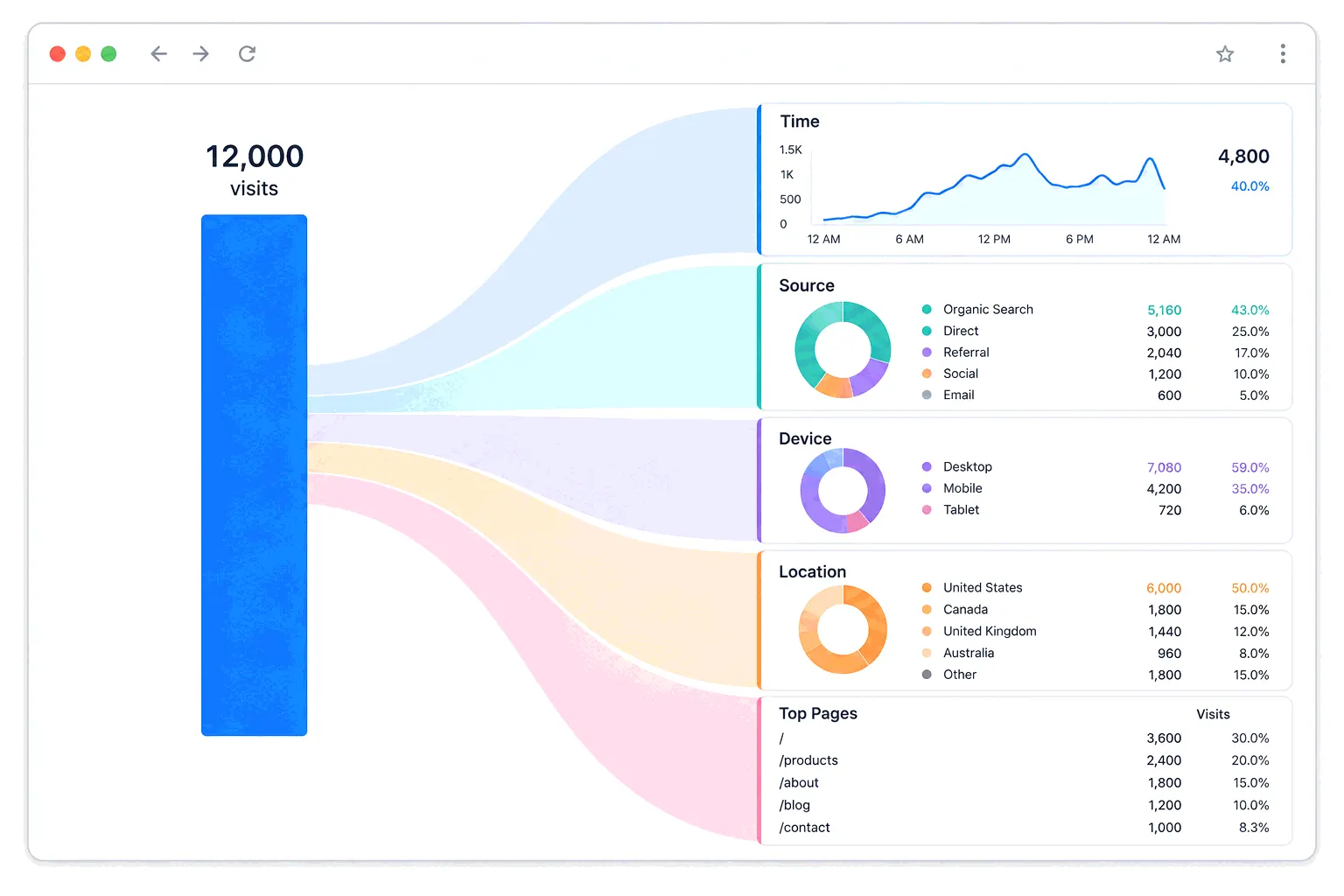
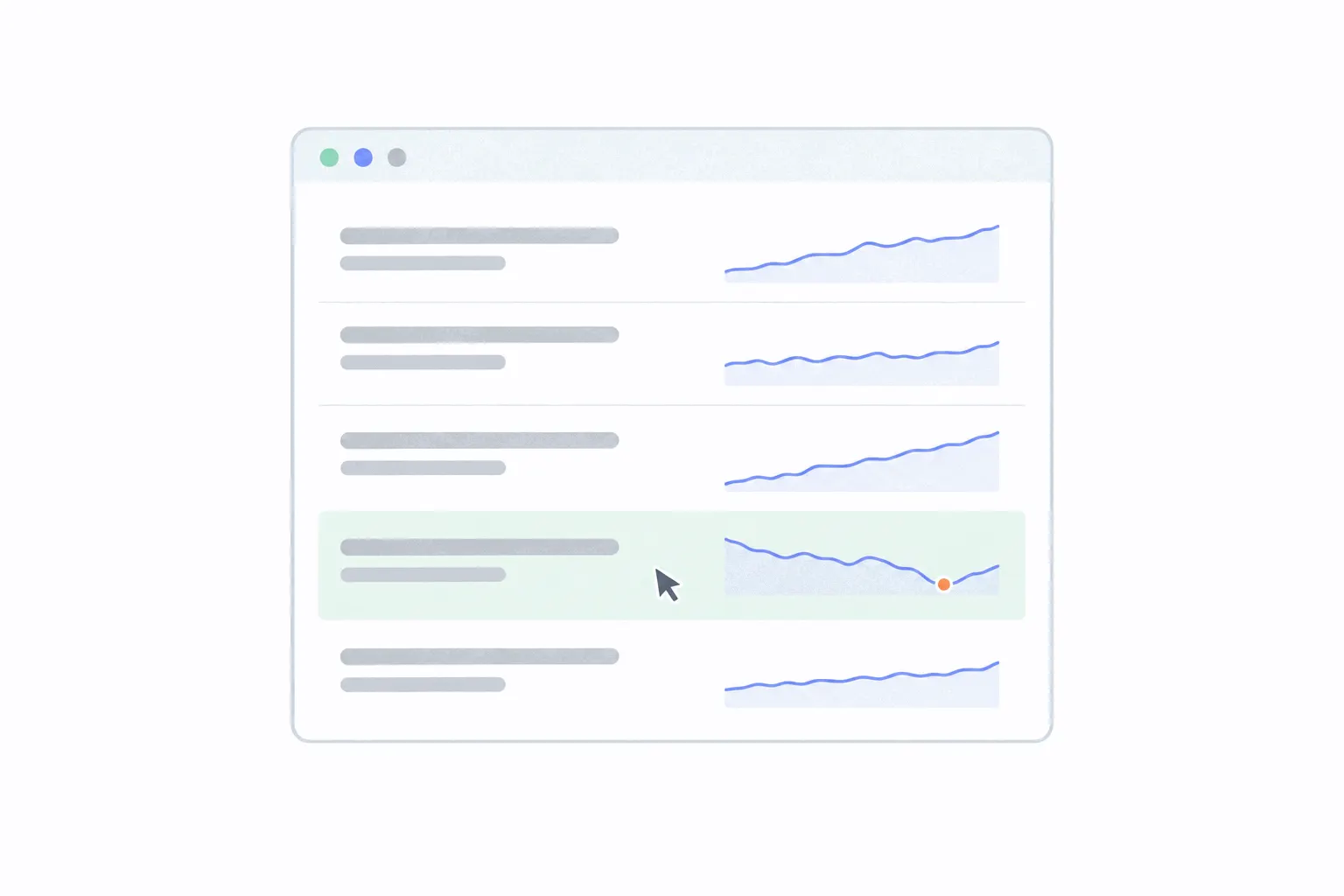
Once counting runs, the number you will actually use lives in the pages report, which every tool has under a name like Pages, Top pages or Content. It lists each URL with its views for the chosen period. The site-wide total sits at the top, and the list below it is the useful part: which pages carry the traffic, and how views for a given page move week to week. How to analyze website traffic covers what to do with that report once it has data.
When automatic counting fails
The script counts a page view when a page loads. Anything that changes content without loading a page slips past it, and three cases cover most of the trouble.
Single-page apps are the big one. A React, Vue or similar app loads once, and every navigation after that swaps content with JavaScript while the browser stays on the same load. To a naive counter that is one page view per visit, however long the session. The fix is counting navigations instead of loads. Google Analytics does this through enhanced measurement, which can fire page_view when the browser's history state changes, the pushState, popState and replaceState events a single-page app produces. Most other tools have an equivalent switch or a small manual call for the same purpose. If your analytics shows suspiciously few views per visitor on an app-like site, this is almost always why.
Hash navigation is the awkward cousin. A site that navigates by changing only the fragment after # in the URL may not produce history events at all, and then no automatic setting helps. The tool's manual page-view call, triggered on each hash change, is the reliable route.
Embedded content is the third case. A widget or form served inside an iframe is its own little page from another domain. Your script does not run inside it, so interactions there are invisible unless the embed provider reports them separately.
Keep your own visits out
You will load your own pages far more often than any visitor, and on a small site that skews everything. Most tools can exclude an IP address. In Google Analytics the route is Admin, then Data streams, then Configure tag settings, then Define internal traffic, where you mark your office or home IP, and a data filter then removes the marked traffic. Set the filter live only after checking it in its testing state, because Google warns the effect on data is permanent. Lighter tools usually make this one settings field.
Why the number runs low
Whatever tool you install, the count will sit below reality. Ad blockers and privacy browsers stop analytics scripts outright for a share of visitors, so those visits leave no trace. Dark traffic covers how big that invisible share tends to be. Two tools on the same site will also disagree with each other for the same reasons plus definitional ones, which why analytics tools show different numbers walks through. Treat page views as a consistent floor. The trend is real even though the absolute number is short.
Which page-view numbers to watch
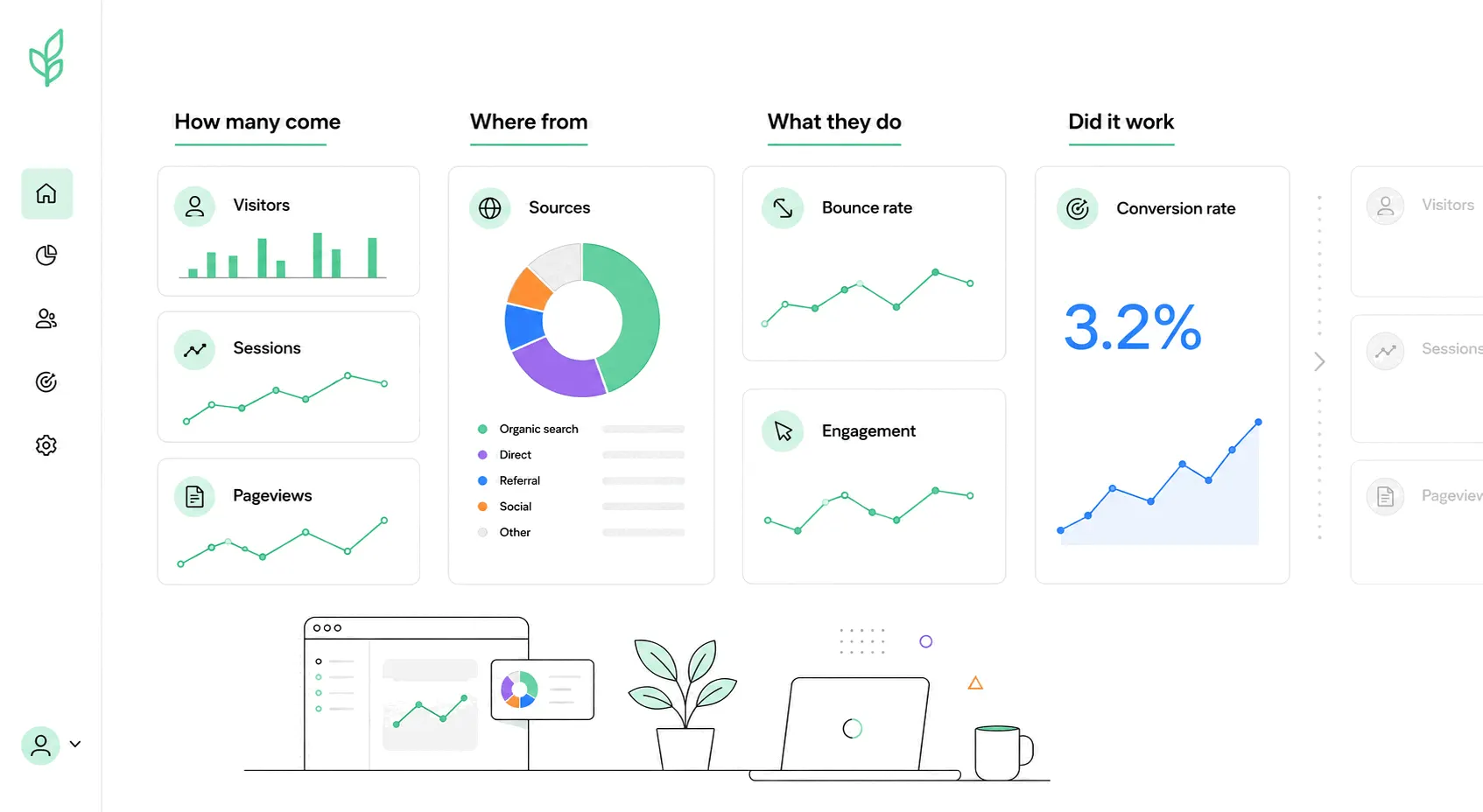
Two are worth a routine. The per-page trend for the handful of pages that matter to your goal, since a landing page quietly losing views is a finding. And the top-pages list, read monthly, because it shows where visitors actually spend their attention, which is rarely where the sitemap thinks.
The one to ignore is the site-wide total on its own. It rises with any publishing activity, mixes your best pages with your housekeeping ones, and converts nobody. If you keep it, keep it as context. The numbers worth a dashboard are covered in website metrics to track.